
What you start with
Before any method, get the media in order. For each episode you need:
- One camera per person, plus a wide shot or a two-shot if you have one.
- One microphone per person: separate files, or separate channels of a multitrack recorder. This is what tells you, and any automatic tool, who is talking.
- A way to sync: shared timecode, or room sound on every camera so the waveforms can be matched.
Put the cameras and the recorder files of one episode in one folder, one sub-folder per card if you like. It saves time in every method below.
Method 1: by hand, with a multicam clip
This is the classic Resolve workflow and it works in the free version.
- Import the camera clips and the audio files into the Media Pool, ideally in one bin.
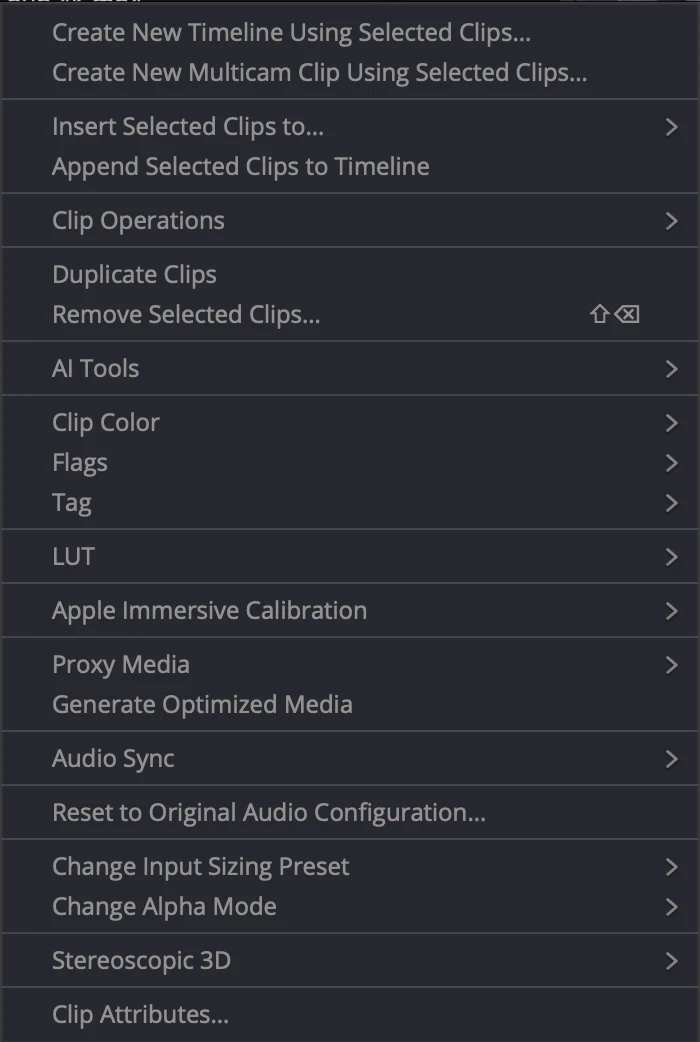
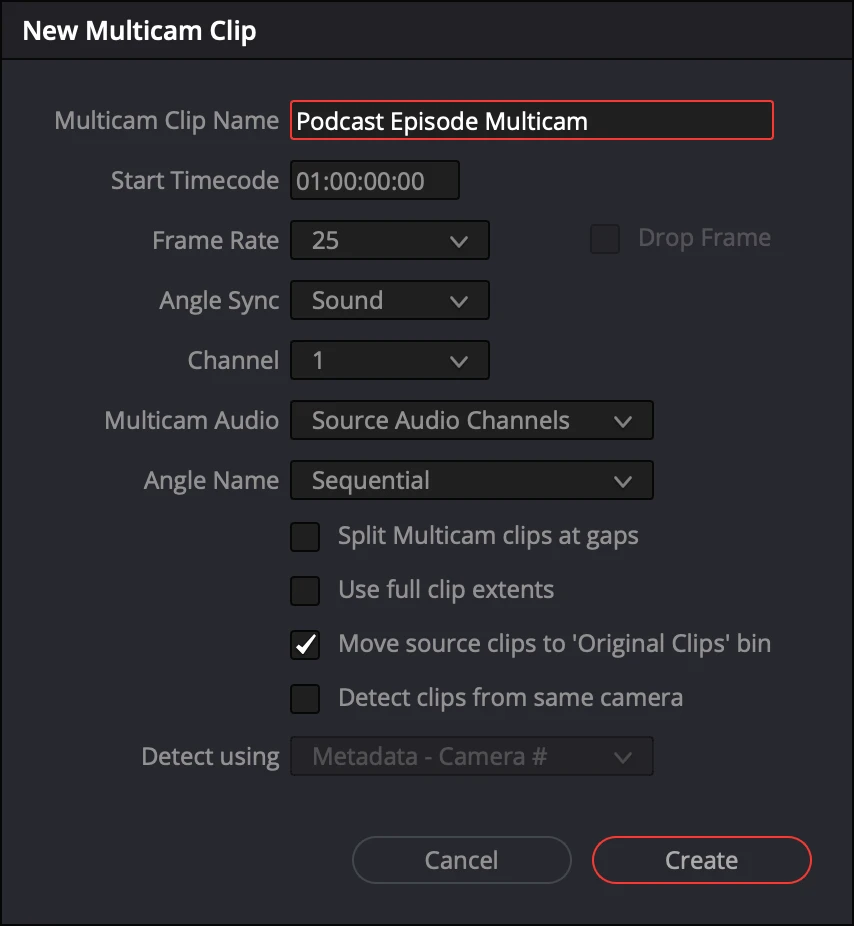
- Select them, right-click and choose Create New Multicam Clip Using Selected Clips…. Name it and set Angle Sync to Sound (or Timecode if every device shares it).
- Drag the multicam clip to a new timeline.
- On the Edit page, switch the Source viewer to its Multicam mode. Play the timeline and click the angle you want at each change of speaker; Resolve cuts the multicam clip there.
- Go back over the cut: move the edits that came too early or too late, add the wide shot when people talk over each other, and build any split screens by hand with Transform or a compound clip.
The catch is time: you watch the whole episode at least once just to switch angles, then fix it. For a weekly show that is most of a working day. More on syncing cameras and microphones in Resolve.
Method 2: Resolve’s Multicam SmartSwitch
DaVinci Resolve Studio includes Multicam SmartSwitch, which analyzes a multicam clip and switches the angles for you from the cameras’ own sound and the lip movement it sees. It comes with Resolve Studio and costs nothing more.
You still build and sync the multicam clip first (steps 1–3 above). We measured it on one of our 78-minute episodes with five cameras: its full analysis took 46 minutes, and the person talking was on screen 72–87% of the time depending on how we prepared the clip. See the full measurement.
Method 3: automatically, with SOLD CUT
SOLD CUT is a Mac app that drives DaVinci Resolve Studio for you. It starts one step earlier than the other methods, at the folder of raw files, and ends with a finished cut on a copy of your timeline:
- Import: point it at the episode folder. It groups cameras and microphones, syncs everything by sound or timecode, starts Resolve and builds the project and the timeline.
- Who is who: each person gets their microphone, each camera its person, the wide or a split screen.
- Analyze: each person’s microphone decides who speaks; you pick the pace and see the whole cut before anything is written.
- Cut to a Copy: a new “EP29 AUTO” timeline appears with the chosen angle on and every other angle kept underneath, disabled, so any shot is one click away.
On the same episode as above it analyzed in 4 seconds, and the person talking was on screen 93.5% of the time. After the cut, the same app adds subtitles, YouTube titles, react layouts, jump cuts and clips. How SOLD CUT edits a podcast.
Which one to choose
| Method | Needs | Best for |
|---|---|---|
| By hand | Any Resolve, including free | A one-off episode, or full manual control from the first cut |
| SmartSwitch | Resolve Studio | One or two cameras, multicam clips you already build |
| SOLD CUT | Resolve Studio on a Mac, a microphone per person | A weekly show with several cameras, where you want a cut to polish instead of a cut to make |
Questions
Can I edit a multicam podcast in the free DaVinci Resolve?
Yes, by hand: multicam clips and angle switching are in the free version. Multicam SmartSwitch and apps that drive Resolve, like SOLD CUT, need DaVinci Resolve Studio.
Should I sync by sound or by timecode?
Timecode is exact when every camera and recorder shares it. Without timecode, sync by sound: Resolve matches the waveforms, which works well when every camera records some room sound.
How long does a manual multicam edit take?
Roughly the length of the episode to switch the angles, plus the time to sync, fix early or late cuts and build split screens. In our studio a full episode took three to four hours by hand.
Which page of Resolve is best for multicam editing?
The Edit page, with the Source viewer in its multicam mode: you see every angle at once and click the one to cut to while the timeline plays.