
01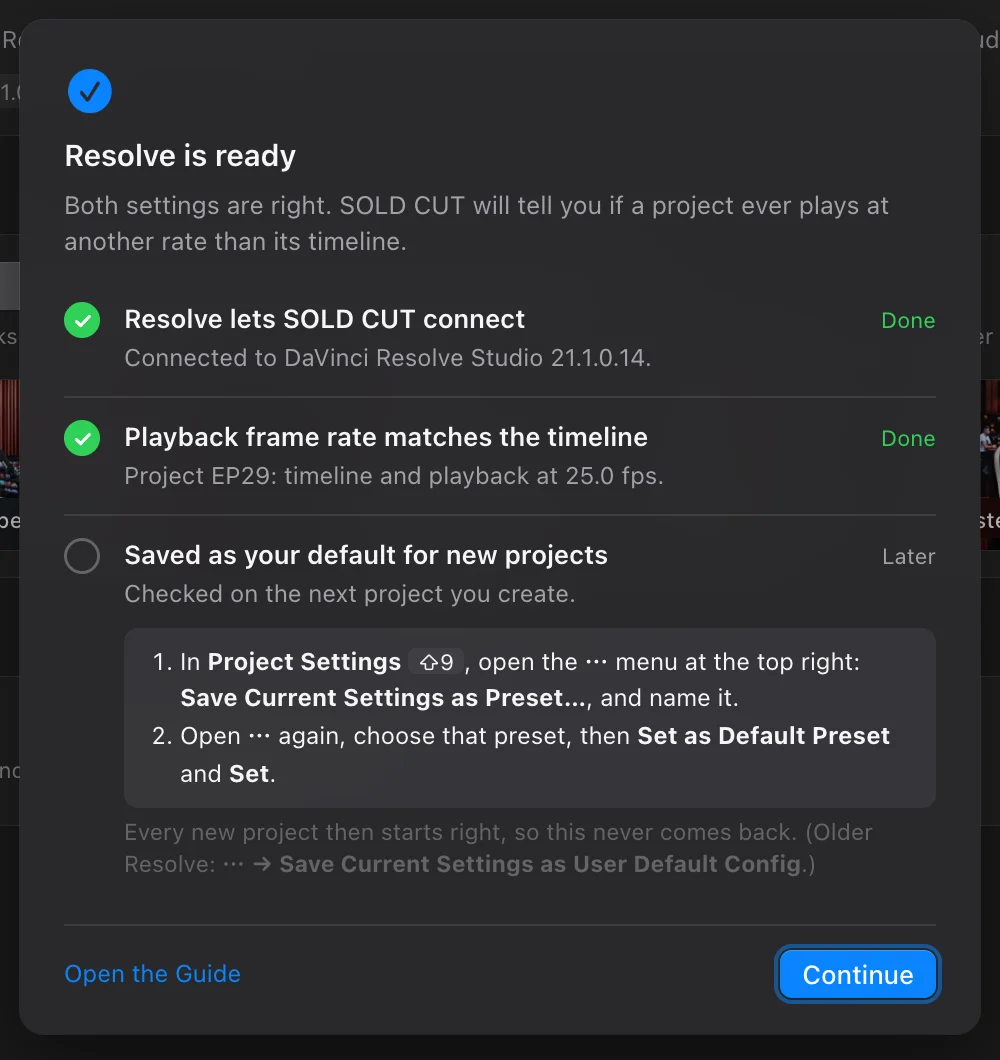 Before your first episodeInstall, activate or start the free trial, and the two Resolve settings. Once, 10 minutes.
02
Before your first episodeInstall, activate or start the free trial, and the two Resolve settings. Once, 10 minutes.
02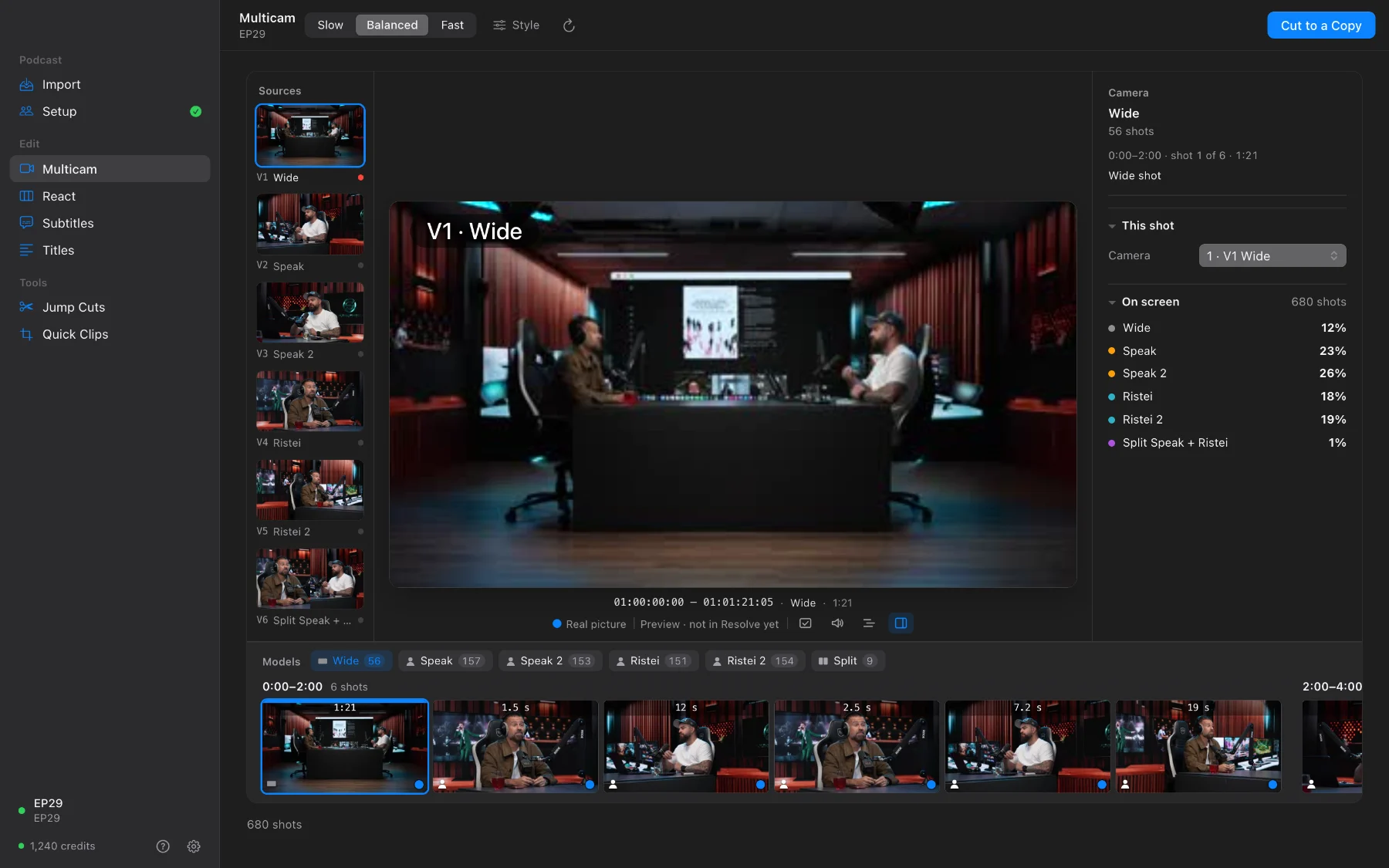 Your first episodeFrom the raw folder to the multicam cut in DaVinci Resolve: Import, Setup, Multicam, Cut to a Copy.
03
Your first episodeFrom the raw folder to the multicam cut in DaVinci Resolve: Import, Setup, Multicam, Cut to a Copy.
03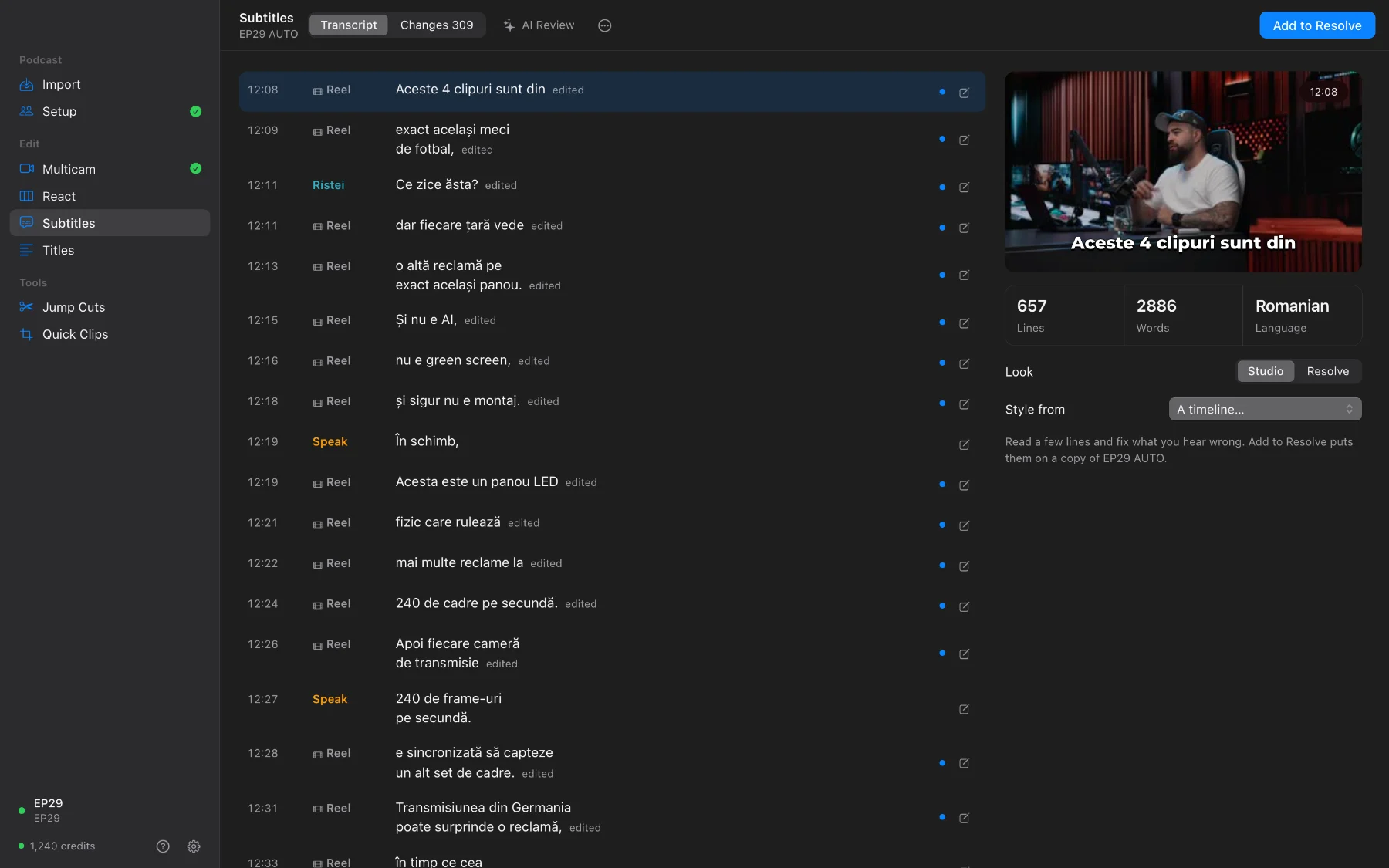 Subtitles for the whole episodeTranscribe every microphone, review with AI, fix any line, add to Resolve in your look.
04
Subtitles for the whole episodeTranscribe every microphone, review with AI, fix any line, add to Resolve in your look.
04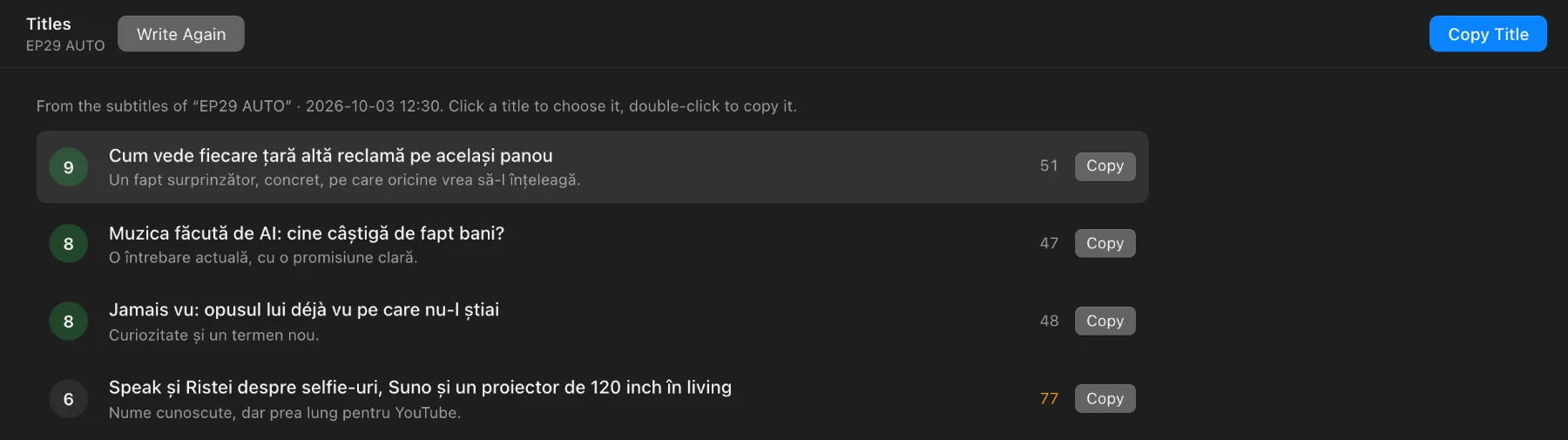 Ten titles for YouTubeTen titles from the subtitles, each scored from 1 to 10. Pick one, copy it.
05
Ten titles for YouTubeTen titles from the subtitles, each scored from 1 to 10. Pick one, copy it.
05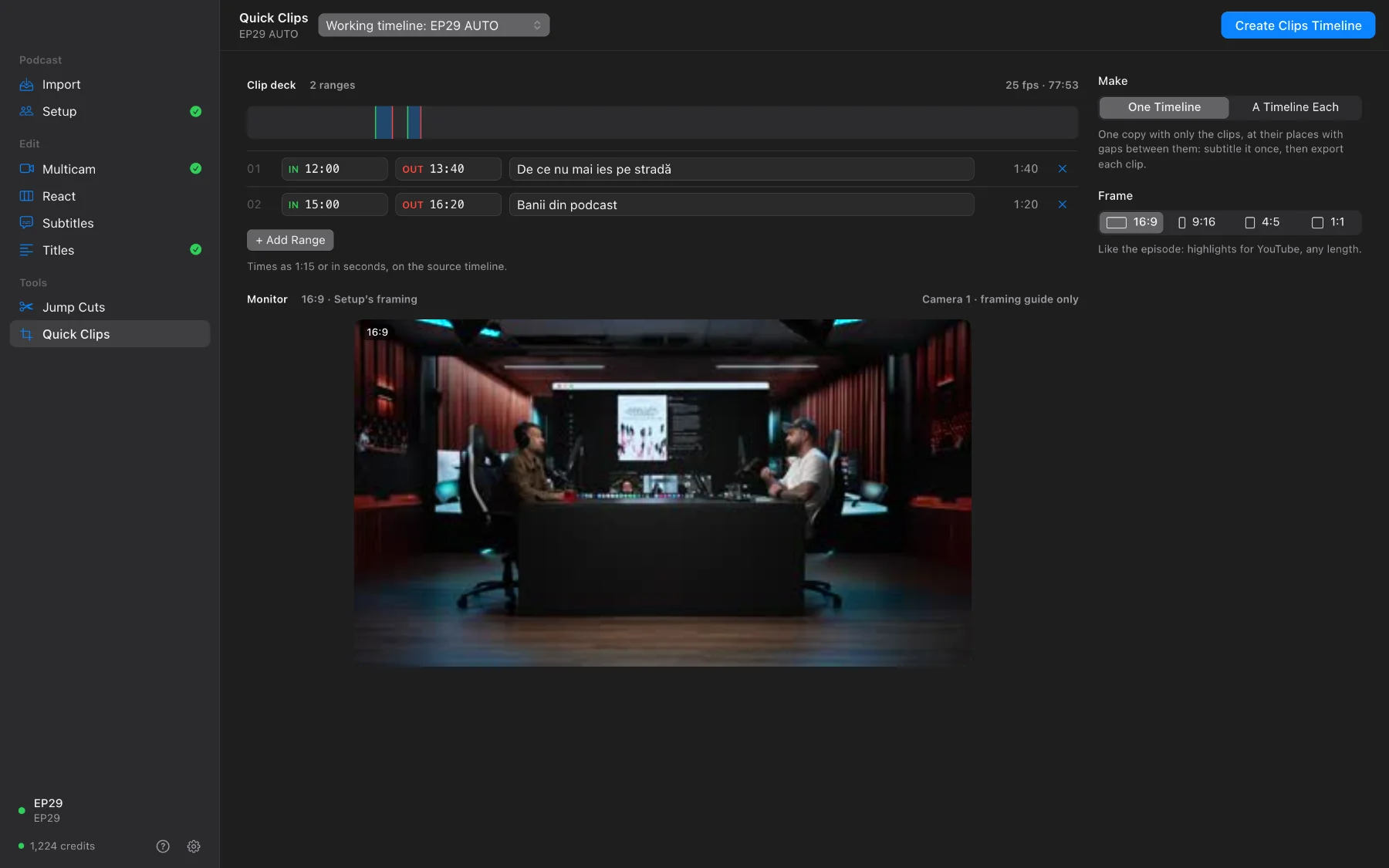 Clips from your markersMark IN and OUT in Resolve; get a clips timeline or one vertical timeline per clip, then export.
06
Clips from your markersMark IN and OUT in Resolve; get a clips timeline or one vertical timeline per clip, then export.
06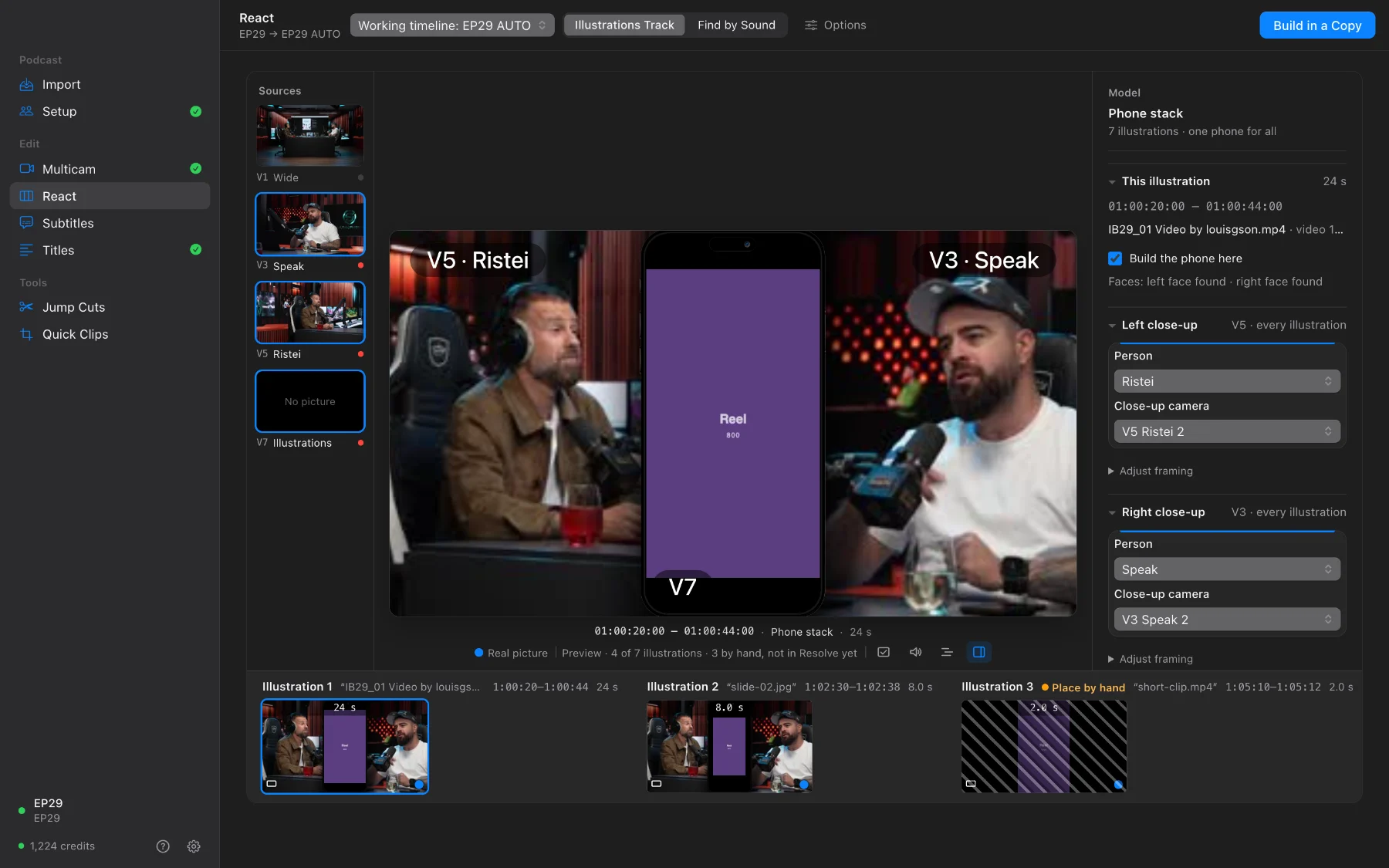 React: the phone in the middleEvery clip on screen in a phone, a close-up on each side, the faces followed.
07
React: the phone in the middleEvery clip on screen in a phone, a close-up on each side, the faces followed.
07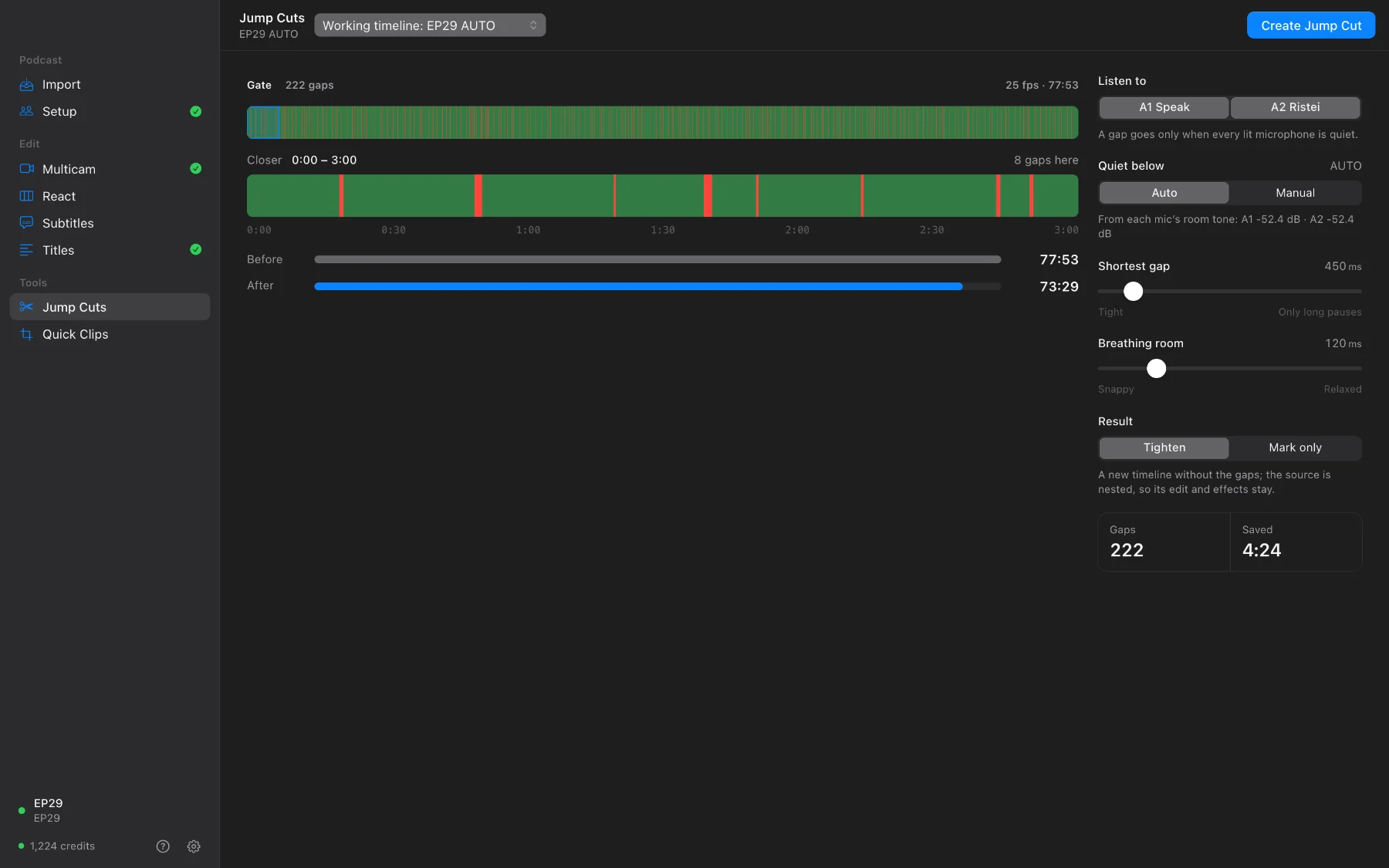 Jump cutsPreview the quiet gaps, then tighten the episode or mark every gap for yourself.
Before your first episodeInstall, activate or start the free trial, and the two Resolve settings. Once, 10 minutes.
02Your first episodeFrom the raw folder to the multicam cut in DaVinci Resolve: Import, Setup, Multicam, Cut to a Copy.
03Subtitles for the whole episodeTranscribe every microphone, review with AI, fix any line, add to Resolve in your look.
04Ten titles for YouTubeTen titles from the subtitles, each scored from 1 to 10. Pick one, copy it.
05Clips from your markersMark IN and OUT in Resolve; get a clips timeline or one vertical timeline per clip, then export.
06React: the phone in the middleEvery clip on screen in a phone, a close-up on each side, the faces followed.
07Jump cutsPreview the quiet gaps, then tighten the episode or mark every gap for yourself.
More
- Every page and every button, in detail: the SOLD CUT guide.
- The whole workflow on a real episode in two minutes: the demo.
- Working in DaVinci Resolve in general: edit a multicam podcast, sync cameras and audio, podcast subtitles.
- Stuck? Ask the assistant at the bottom right, or write to [email protected].