
Step 1 · Import: drop the episode folder
Open Import, the first page in the sidebar (⌘1). Choose Podcast, then drag the episode’s folder onto the window, or press Choose Folder…. Point it at the folder with everything: the camera cards and the recorder files, subfolders included.
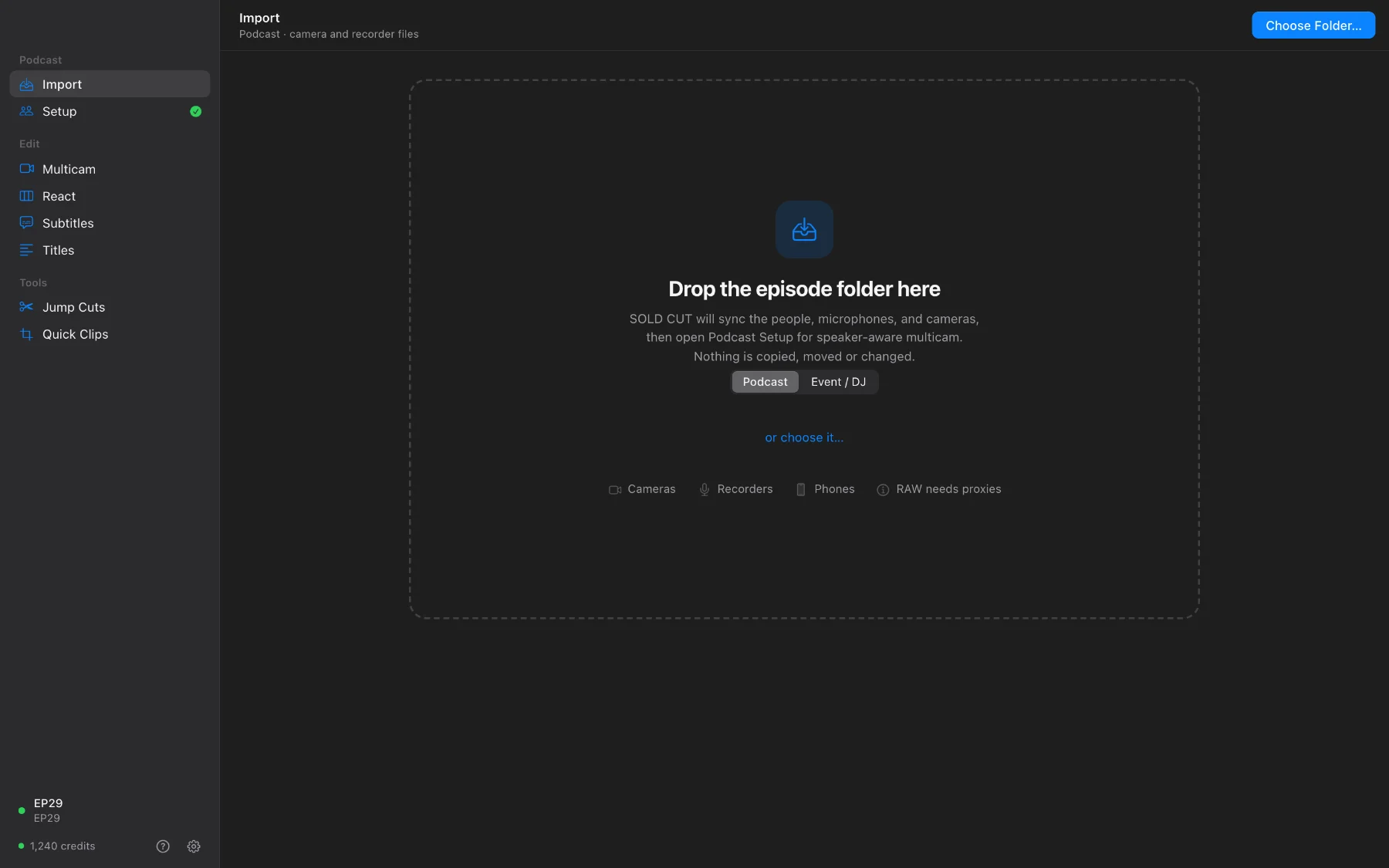
SOLD CUT groups the files into cameras and microphones and shows a photo from each camera so you can recognise them.
Step 2 · Say who is who
Names are guessed from the file and folder names, so check every line:
- Give each microphone its person. On a stereo or multitrack recorder, choose the channel that carries them, or One person per channel when two people share a file.
- Set the room sound, the music or the phone feed to Other sound, and anything you don’t want to Don’t use.
- Give each camera a role: a person’s close-up, the wide shot, a group shot, a split screen, or Leave untouched for illustrations and inserts.
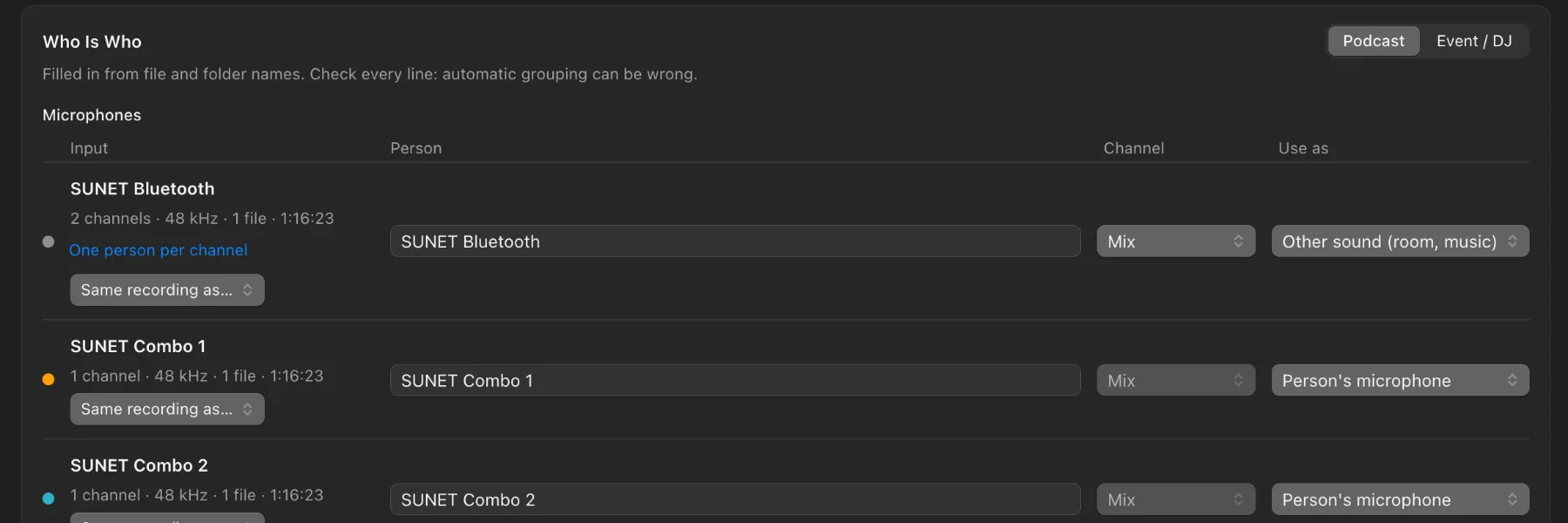
Then press Check Sync (it lines everything up by sound, or by timecode if your devices share one), choose the frame rate and resolution, and press Create Episode in Resolve. SOLD CUT starts Resolve by itself and builds a new project with a synced timeline.
Step 3 · Setup: check people and cameras
Setup is already filled in from Import. Look at it once: every person with their microphone, every camera with its role.
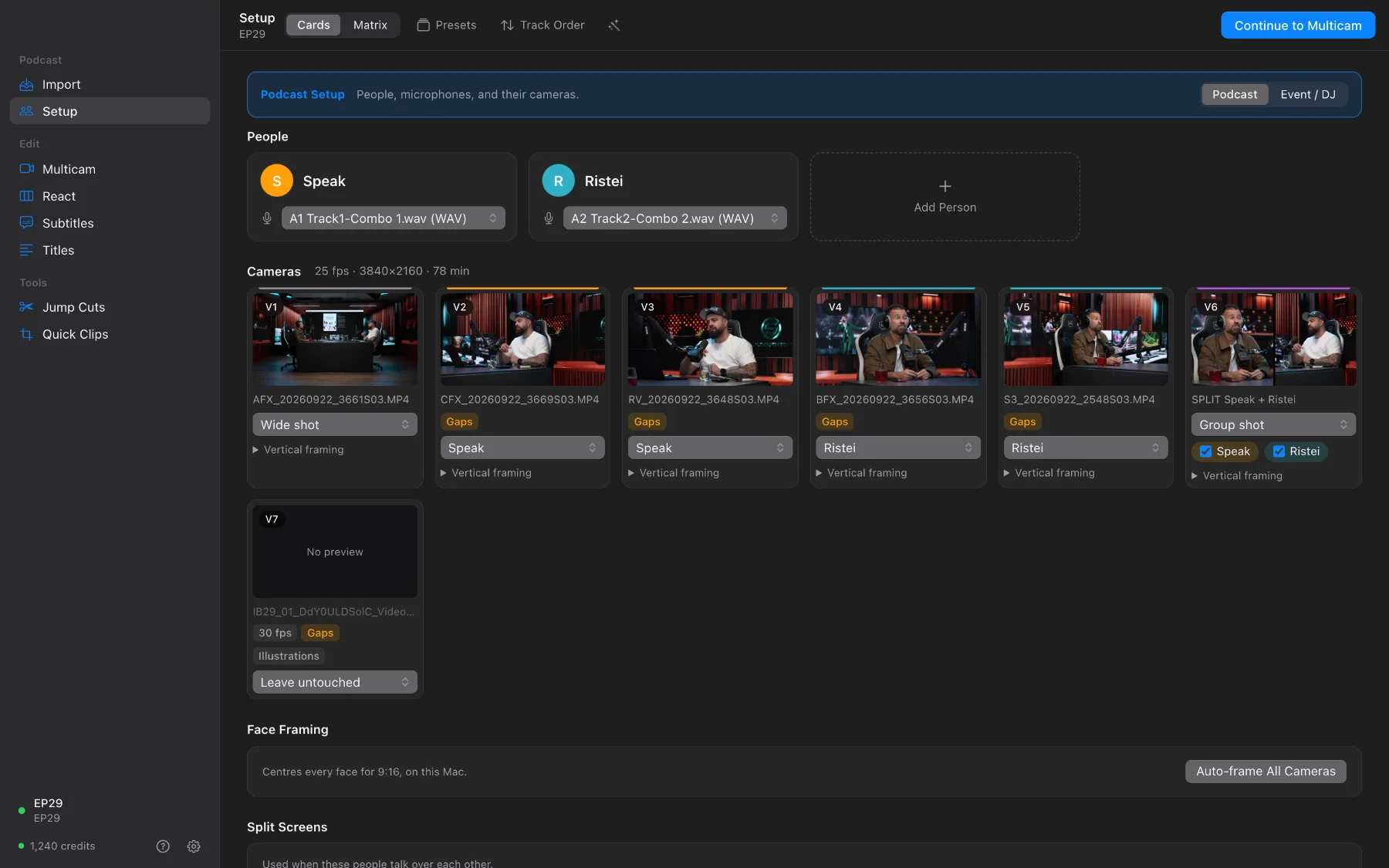
- Want vertical clips later? Press Auto-frame All Cameras: it finds each face on this Mac and centres it for 9:16.
- No camera that shows two people at once? Add Split Screen builds one, used whenever they talk over each other.
- Same show next week? Presets › Save preset keeps all of this; next time it takes a second.
Press Continue to Multicam.
Step 4 · Multicam: analyze, then look
Pick a pace in the toolbar: Slow, Balanced or Fast. Press Analyze. It listens to every microphone and plans every camera change in seconds. Nothing is written to Resolve yet.
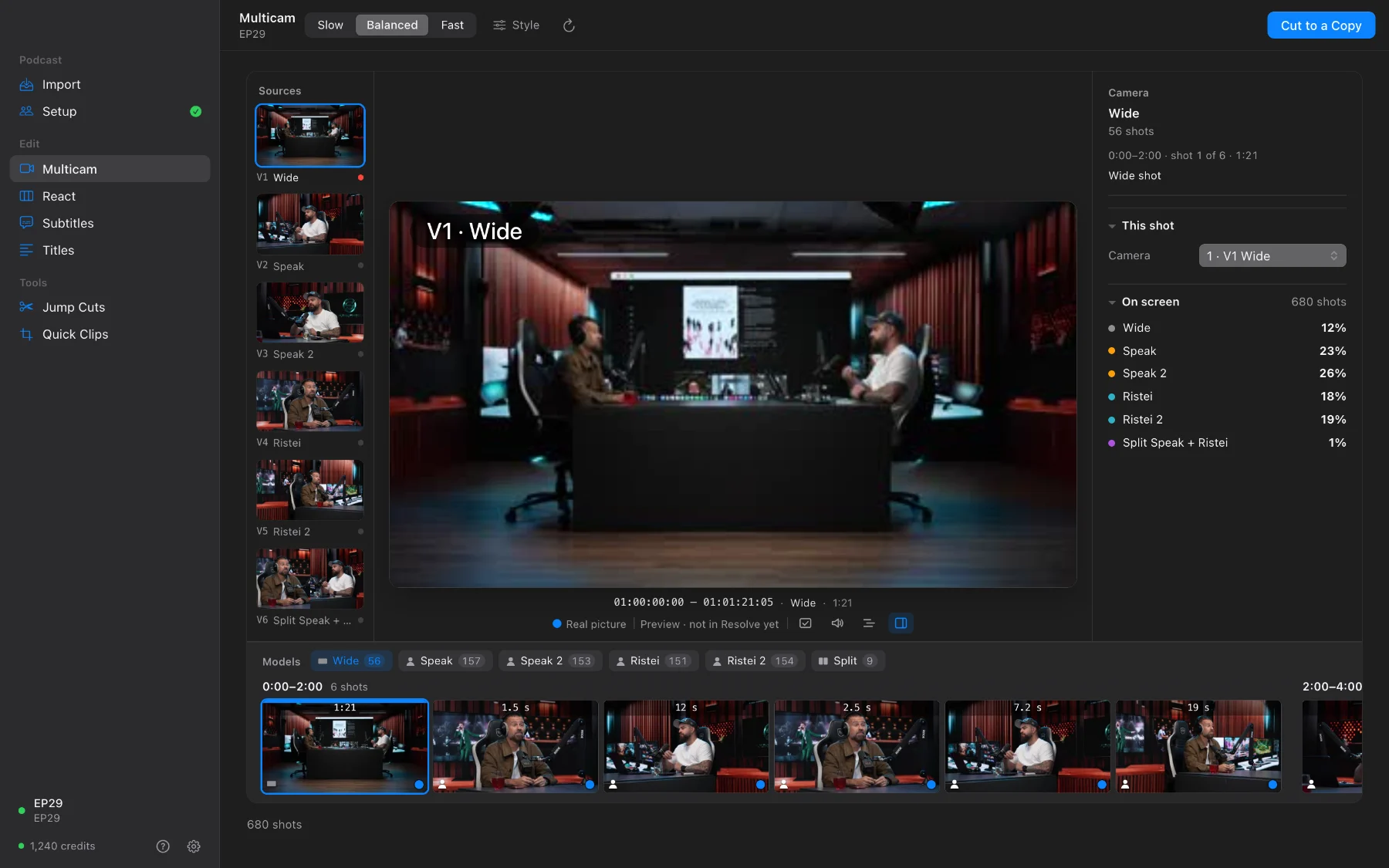
- Move over the strip and the monitor shows that shot; the arrow keys step through the cut.
- Don’t like a shot? Click it, then a camera on the left (or press 1–9). ⌘K cuts a shot in two, ⌘Z undoes.
- Changed something in Setup or Style? Analyze again.
Step 5 · Cut to a Copy
Press Cut to a Copy. Keep Resolve open while it builds. A new timeline named “EP29 AUTO” appears in your project: the chosen angle on, every other angle kept underneath, disabled.
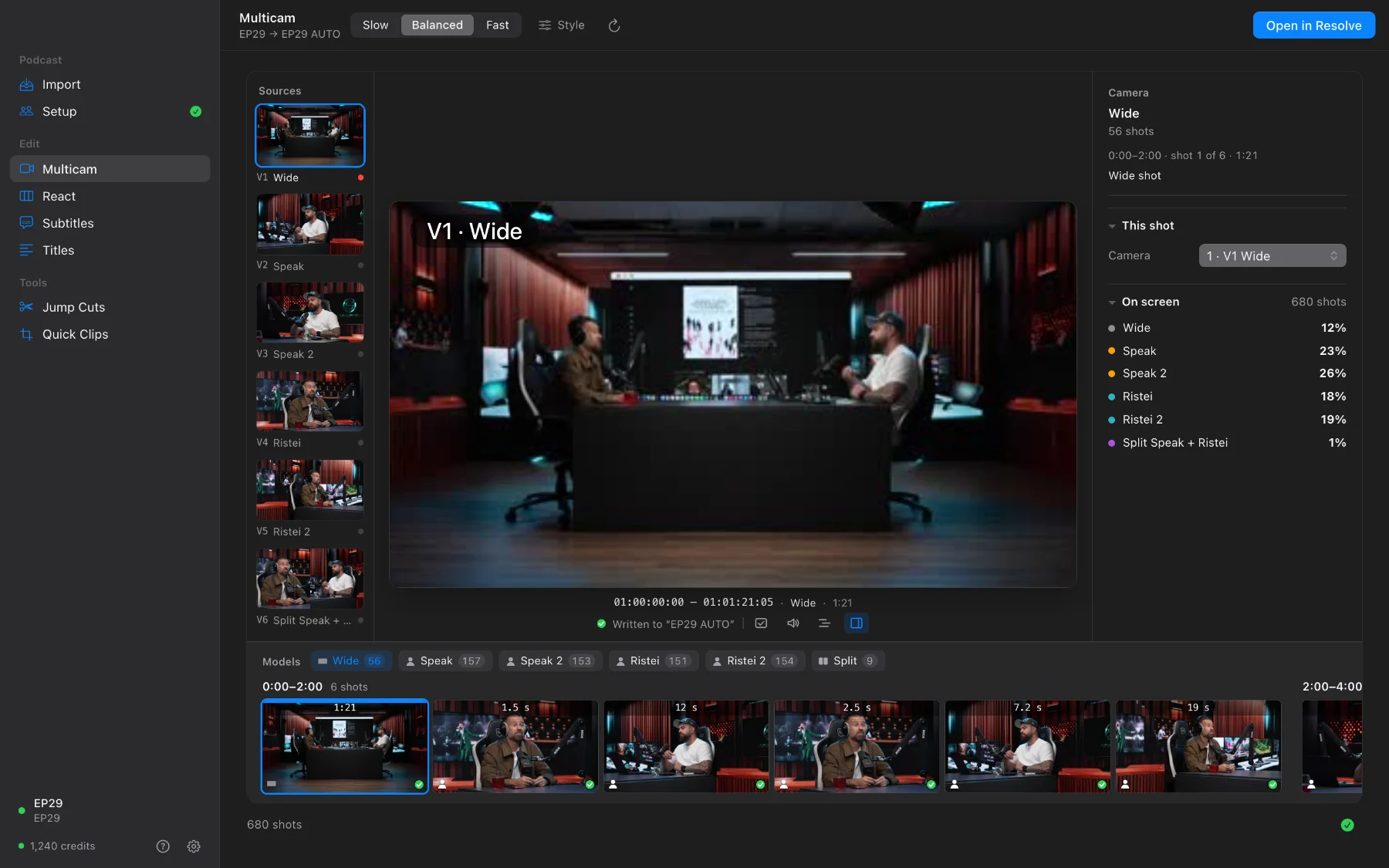
Press Open in Resolve and watch the cut. Any shot you want to change is one click away in Resolve. From here, the next pages work on this copy: subtitles, titles, clips, react and jump cuts.
Questions
I already synced the episode in Resolve. Do I need Import?
No. Open Resolve with your synced timeline, click the project at the bottom of SOLD CUT’s sidebar and choose that timeline, then start at Setup.
Will it change my timeline?
Never. Every step writes a new timeline next to the one before it; your original is only read.
What if I don’t like a shot?
Change it on the Multicam page before cutting (click the shot, then the camera, or press 1–9), or afterwards in Resolve: every other angle is kept underneath the cut, disabled, one click away.