
By sound or by timecode?
| Sync by | How it works | Use it when |
|---|---|---|
| Timecode | Every device writes the same clock into its files; Resolve lines them up by it. | Your cameras and recorder are jammed to one timecode source. |
| Sound (waveform) | Resolve compares the audio of each file and finds where they match. | Each camera records some room sound, which is almost every podcast set. |
One camera and an external recorder: Auto Sync Audio
For a single camera and the sound from a separate recorder, sync them into one clip in the Media Pool:
- Select the camera clip and the audio file in the Media Pool.
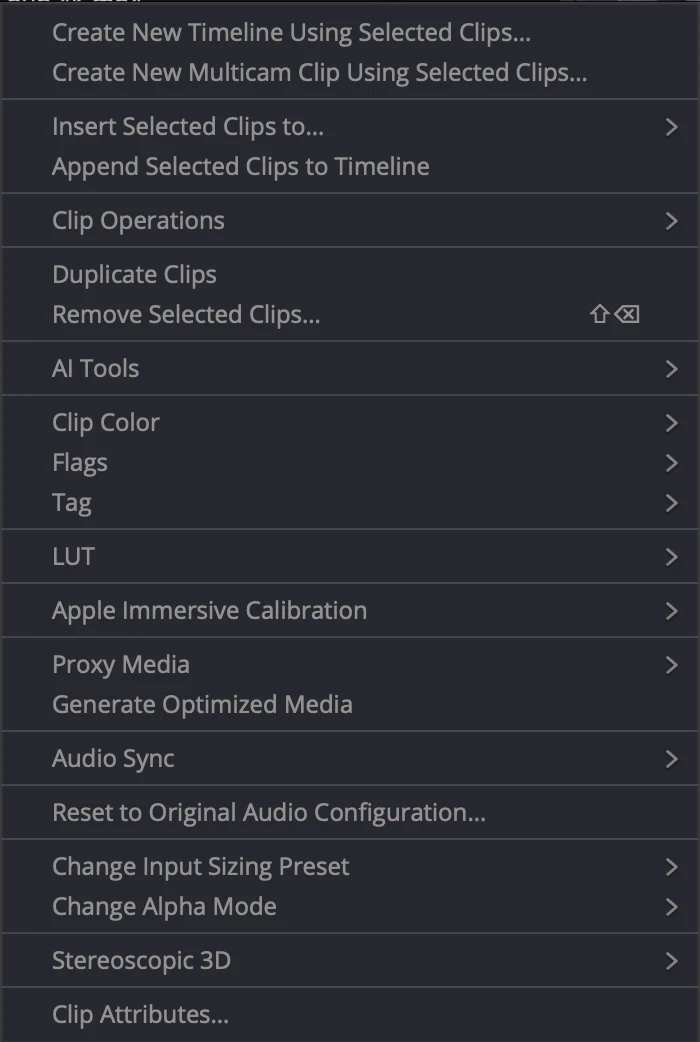
- Right-click and choose Auto Sync Audio (in DaVinci Resolve 21 it sits in the Audio Sync submenu), then Based on Waveform (or Based on Timecode).
- To keep the camera’s own sound as well, use the option that appends the tracks instead of replacing them.
Several cameras: a multicam clip
For a podcast with a camera on each person, sync everything at once into a multicam clip:
- Put the clips of every camera and the microphone files in one bin.
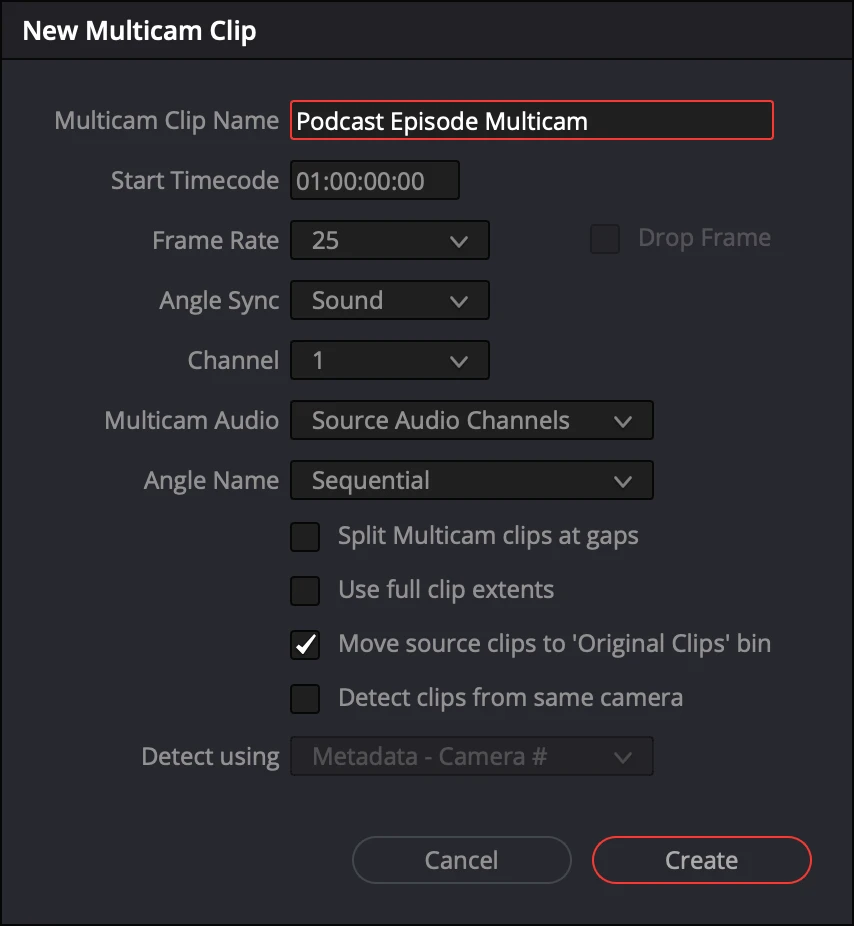
- Select them all, right-click and choose Create New Multicam Clip Using Selected Clips…
- Set Angle Sync to Sound or Timecode, and choose how angles are named (by camera is easiest).
- Open the multicam clip to check that every angle lines up, then put it on a timeline and start the multicam edit.
Tip from our studio: start every recording with a clap that every camera and microphone hears. It gives the waveform sync a sharp peak to lock on to, and it lets you check the sync by eye.
A whole podcast in one step, with SOLD CUT
On a real episode the folder is messy: several cards per camera, long recordings split into pieces, a multitrack recorder with a channel per person. SOLD CUT takes that folder as it is:
- it groups the files by camera and by microphone;
- it syncs everything by sound or by timecode;
- it starts DaVinci Resolve Studio by itself and builds the project, the tracks and a synced timeline;
- you confirm who is who, and the automatic multicam cut follows.
Already synced the episode yourself? Pick that timeline in SOLD CUT and skip straight to the cut. SOLD CUT needs DaVinci Resolve Studio on a Mac with Apple Silicon; it is €150 once, with a 3-day free trial.
Questions
Why does Auto Sync Audio not find a match?
Waveform sync needs the same sound on both files. If a camera recorded no audio, or only noise, there is nothing to match: use timecode, or a clap at the start that every camera hears.
Can Resolve sync a camera recorded in several pieces?
Yes, in a multicam clip each angle can hold several clips in order. Cameras that split long recordings into files of a few gigabytes are common on podcasts; keep the pieces of one camera together.
Do I need timecode?
No. Sound sync works on almost every podcast, because every camera hears the room. Timecode is faster and exact when your cameras and recorder share it.
Does syncing change my original files?
No. Resolve only links the clips in the project; the files on disk stay as they are.