
Step 1 · Mark the clips in Resolve
While you watch the cut in DaVinci Resolve, put a marker at the start of each clip and one at its end, named IN and OUT (or one marker dragged to the clip’s length). Give the IN marker the clip’s name: “Interview IN” becomes the clip “Interview”.
Step 2 · Use Them
Open Quick Clips on that timeline. It finds your markers by itself:
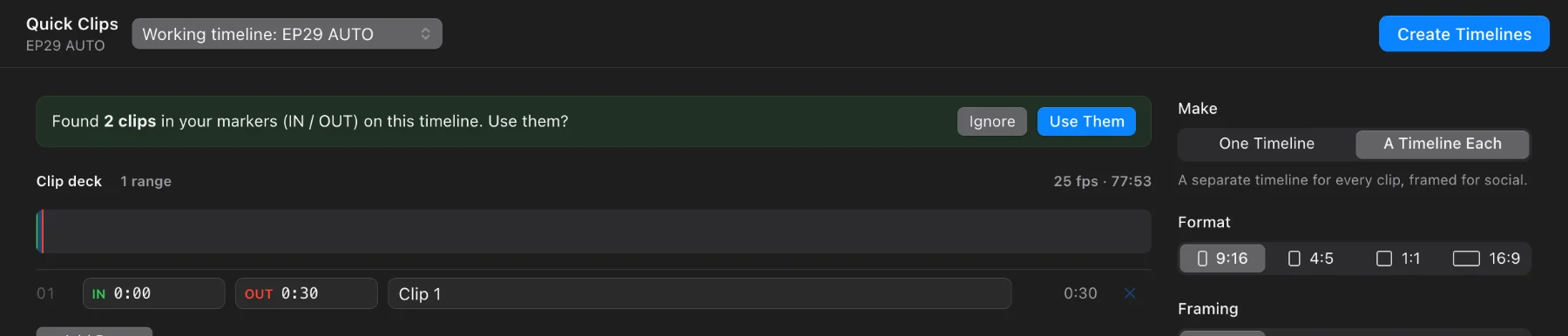
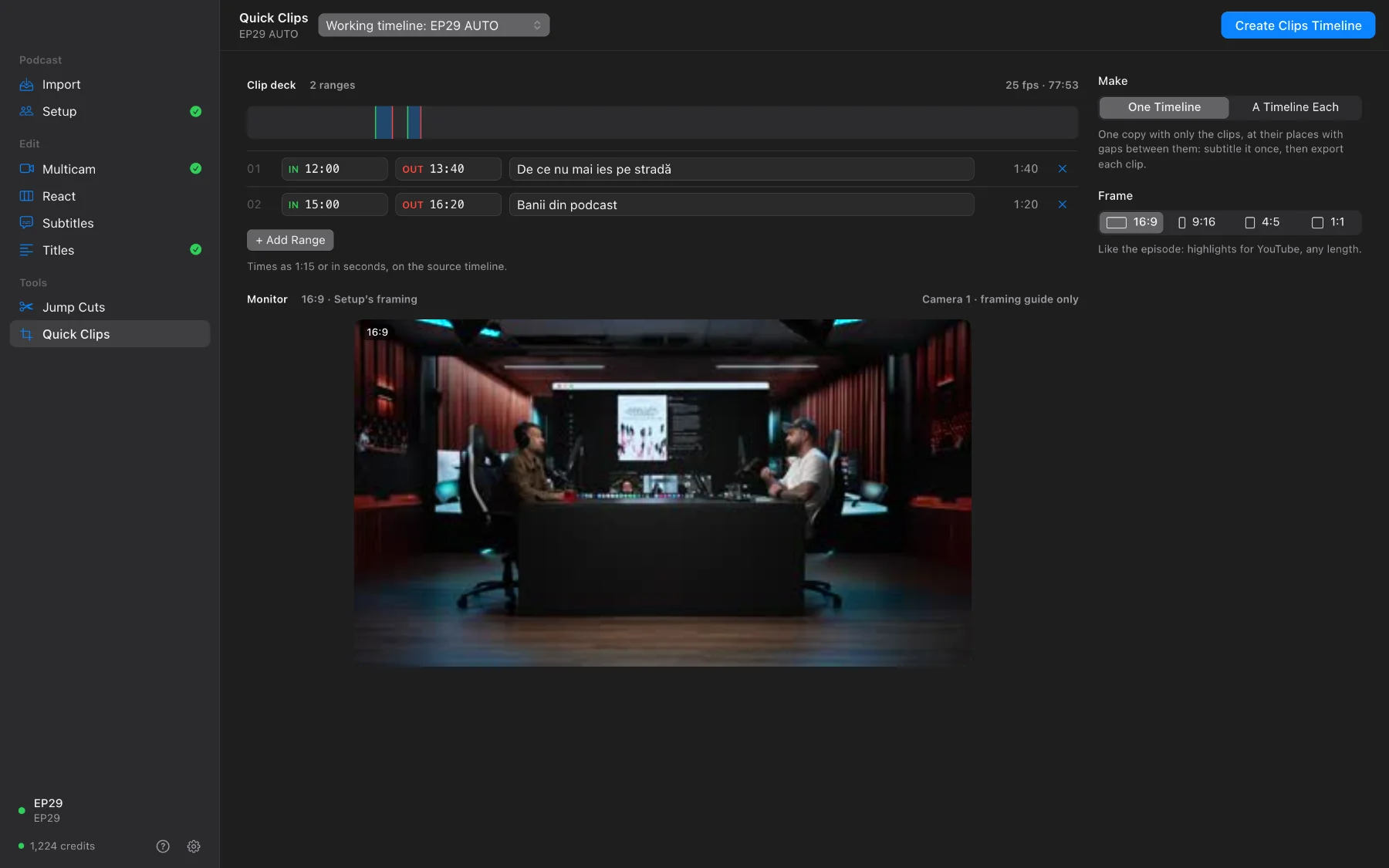
Press Use Them. The list fills in, with each clip’s IN, OUT and name, and you can still change any of them.
Step 3 · One timeline, or one each
- One Timeline: Create Clips Timeline makes one copy, “… CLIPS”, with only the clips, each in its place with a gap before the next. Subtitles and Titles on it are paid for the clips only.
- A Timeline Each: one timeline per clip, in 9:16, 4:5, 1:1 or 16:9. Follow rebuilds each clip from the multicam cut, each camera with its vertical framing from Setup.
Optional: a Watermark (still or moving around the frame) and an End card.
Step 4 · Export the videos
From a clips timeline, Export Each Clip… renders every clip as its own video: Full HD, 4K or the timeline’s size, subtitles burned in if you want, named “EP29 - Cut 1”, “EP29 - Cut 2” or your own pattern. Resolve renders in the background and the list follows each video until it is ready; Show in Finder opens the folder.
Questions
Is there a length limit?
No. A clip can be a 10-second quote or a 20-minute highlight for YouTube.
Can I type the times instead of using markers?
Yes. + Add Range, then type the IN and OUT as 1:15 (minutes:seconds) or in seconds, and a title.
Does it change my timeline?
No. It makes a new “… CLIPS” copy, or one new timeline per clip.