
Step 1 · Choose who sits where
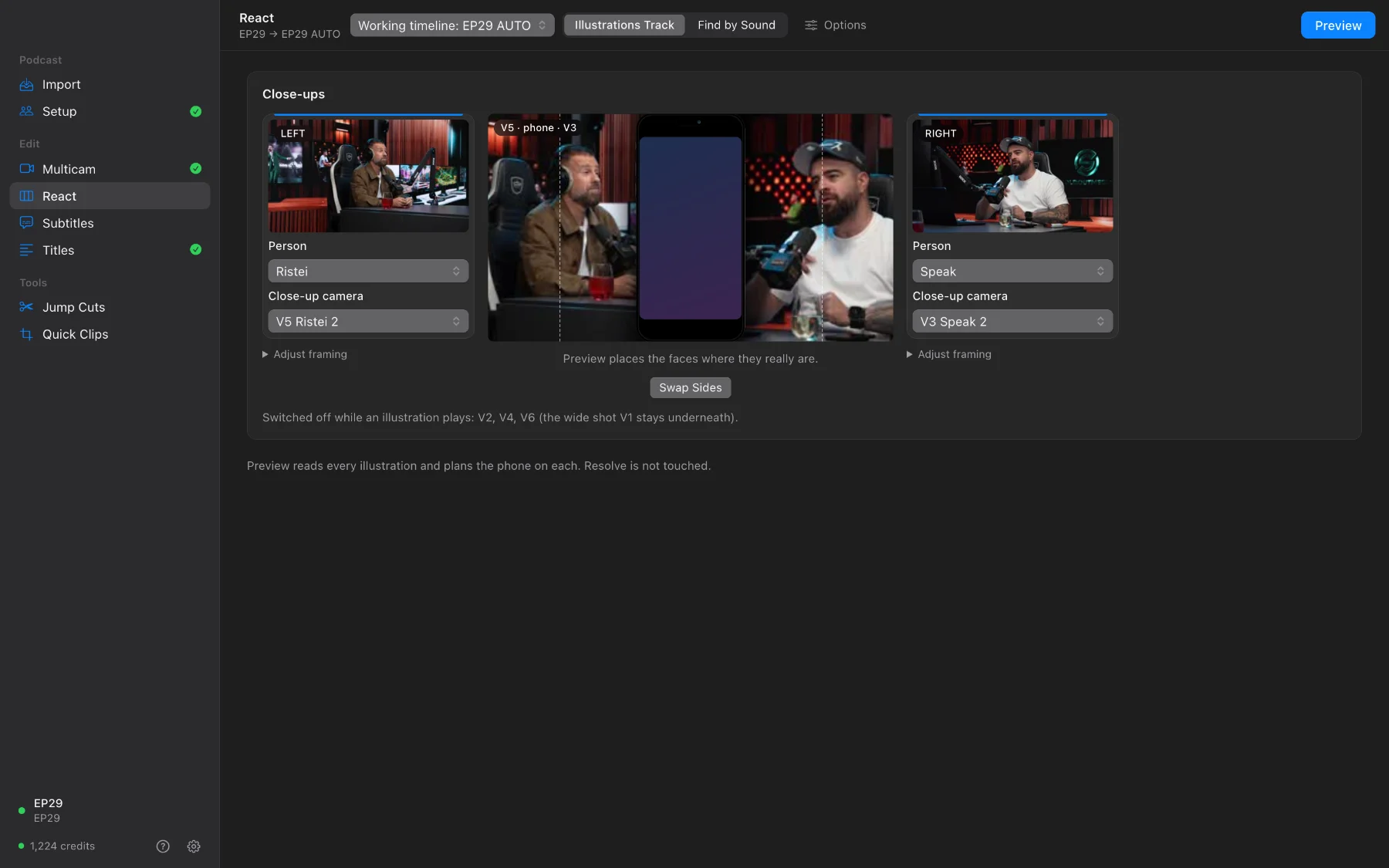
Open React. It works on your multicam copy and finds every clip on the Illustrations track. Choose the person and the close-up camera for the left and the right of the phone; Swap Sides exchanges them.
Step 2 · Preview every clip
Press Preview. It changes nothing: it shows every clip with the phone, the two close-ups framed where the faces really are, and which tracks go off for that stretch.
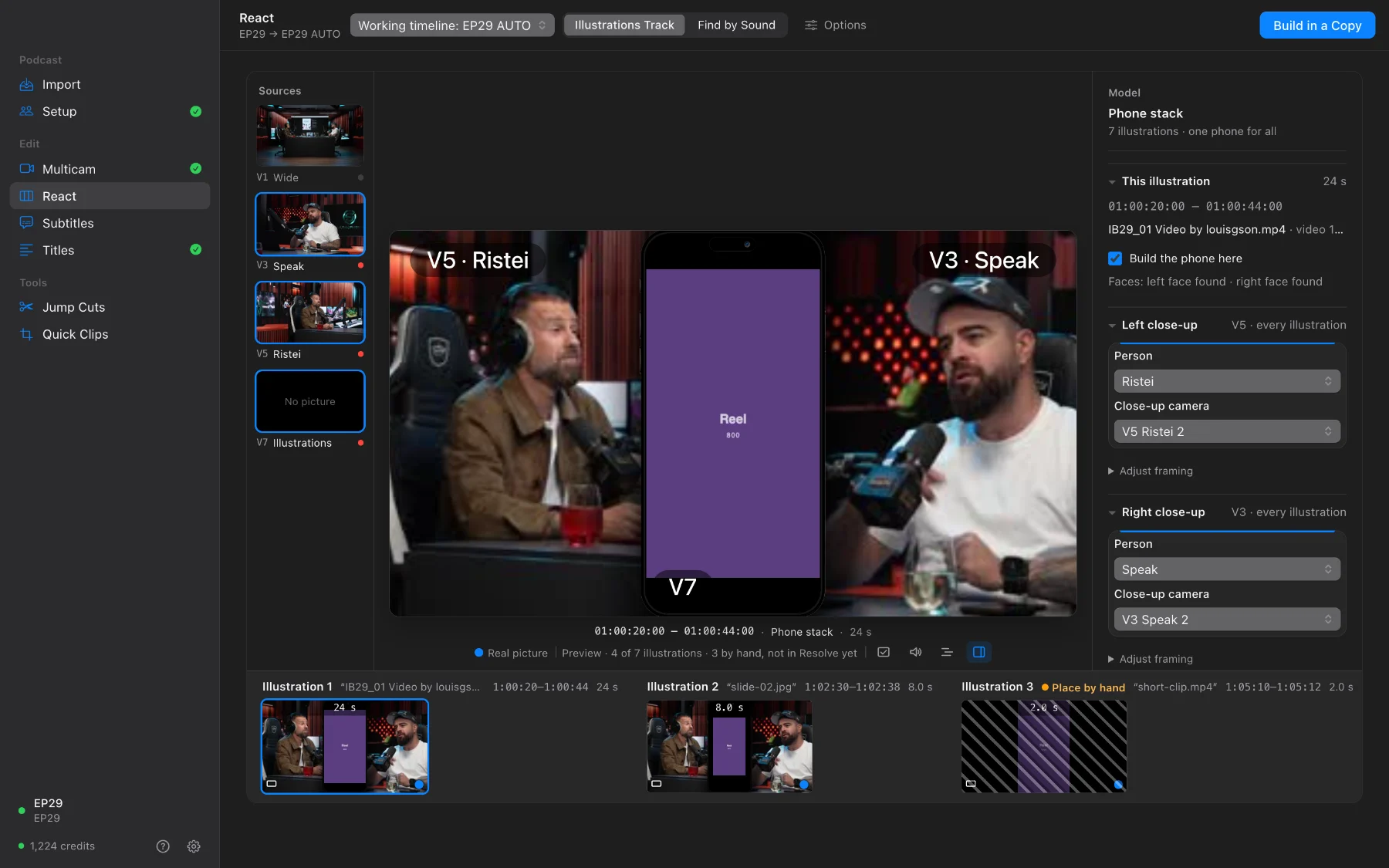
- The close-ups follow the faces: one keyframe a second, smoothed, so the picture does not jitter.
- The clip’s own sound plays; the room’s screen audio is muted exactly for its length.
Step 3 · Build in a Copy
Press Build in a Copy. SOLD CUT makes “… REACT”, builds every clip exactly as previewed and checks the result. Each close-up is a Fusion composition you can fine-tune on the Fusion page. If anything fails, the copy is removed and your timeline is untouched.
Questions
Why don’t I see React in the sidebar?
It appears when the timeline has an Illustrations track. Import makes one from any camera set to Leave untouched; for older timelines, Find by Sound finds the clips by their sound.
Can I use my own phone design?
Yes. Options › Add layout… takes two PNGs the size of the timeline: a background with transparent sides and a frame.
A clip is marked Place by hand.
It is shorter than the minimum (3 seconds, adjustable) or switched off in Resolve, so it is not built automatically. Place it by hand, or force it in the inspector.