
Step 1 · Listen to the right microphones
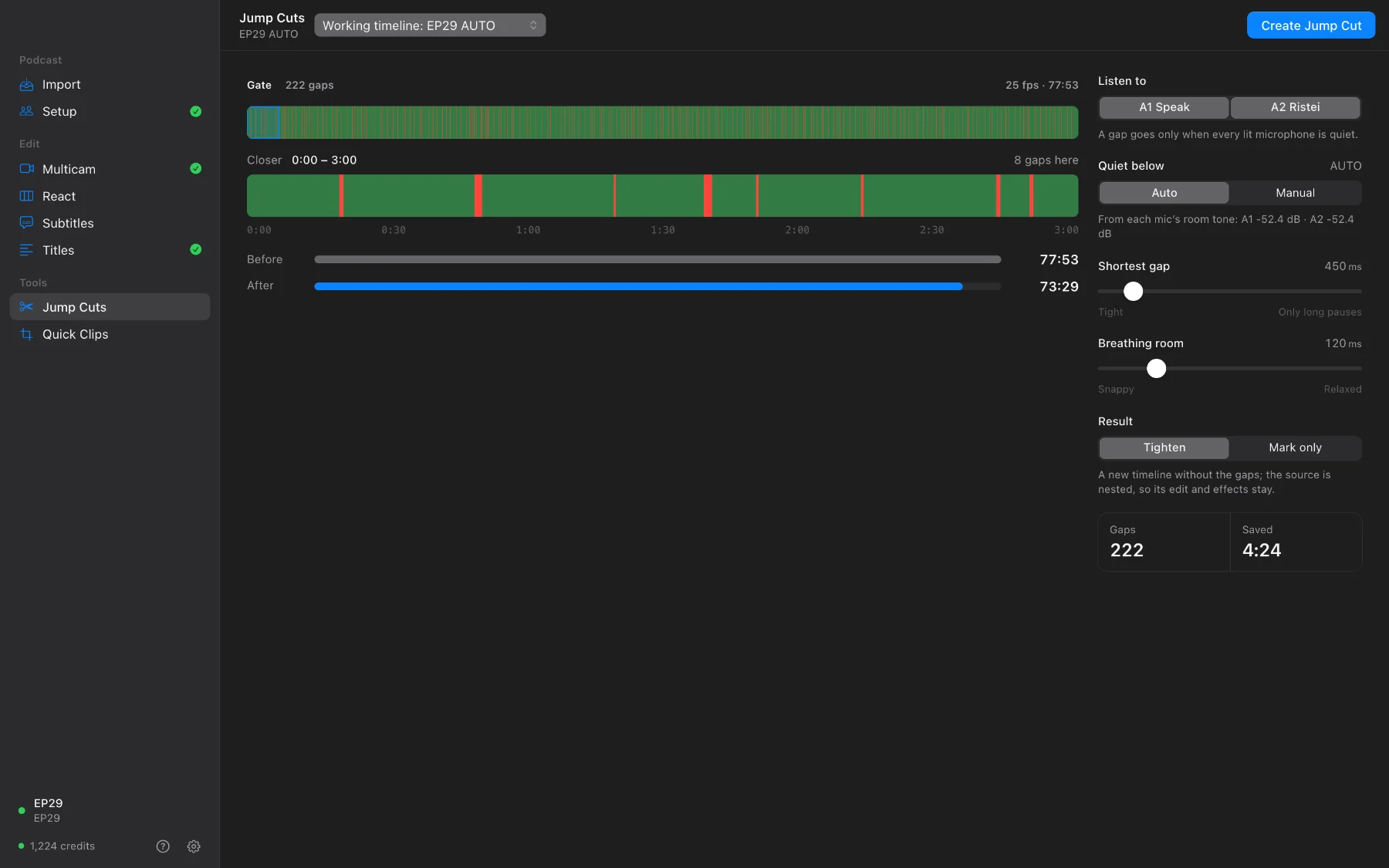
Open Jump Cuts. It starts from your newest copy, the multicam cut. Under Listen to, keep the microphones of the people talking: a gap is cut only when every one of them is quiet.
- Quiet below: Auto learns each microphone’s room tone, so a quiet voice is kept.
- Shortest gap: only pauses longer than this go.
- Breathing room: how much of each pause stays, from snappy to relaxed.
Step 2 · Preview the gaps
Press Preview Gaps. The strip shows every gap in red, and you see the episode’s length before and after.
Step 3 · Tighten, or mark only
- Tighten: Create Jump Cut makes a new timeline without the gaps. The source is nested inside it, so its edit and effects stay.
- Mark only: a red marker on every gap in a copy, nothing cut, so you decide each one yourself in Resolve.
That’s the whole workflow. Back to all tutorials, or read every button in the guide.
Questions
Should I add subtitles before or after the jump cuts?
After. The tightened copy nests the timeline it starts from, so subtitles you add afterwards are the ones you can edit on the new timeline.
Does it change my timeline?
No. Tighten makes a new copy; Mark only puts markers on a copy.