
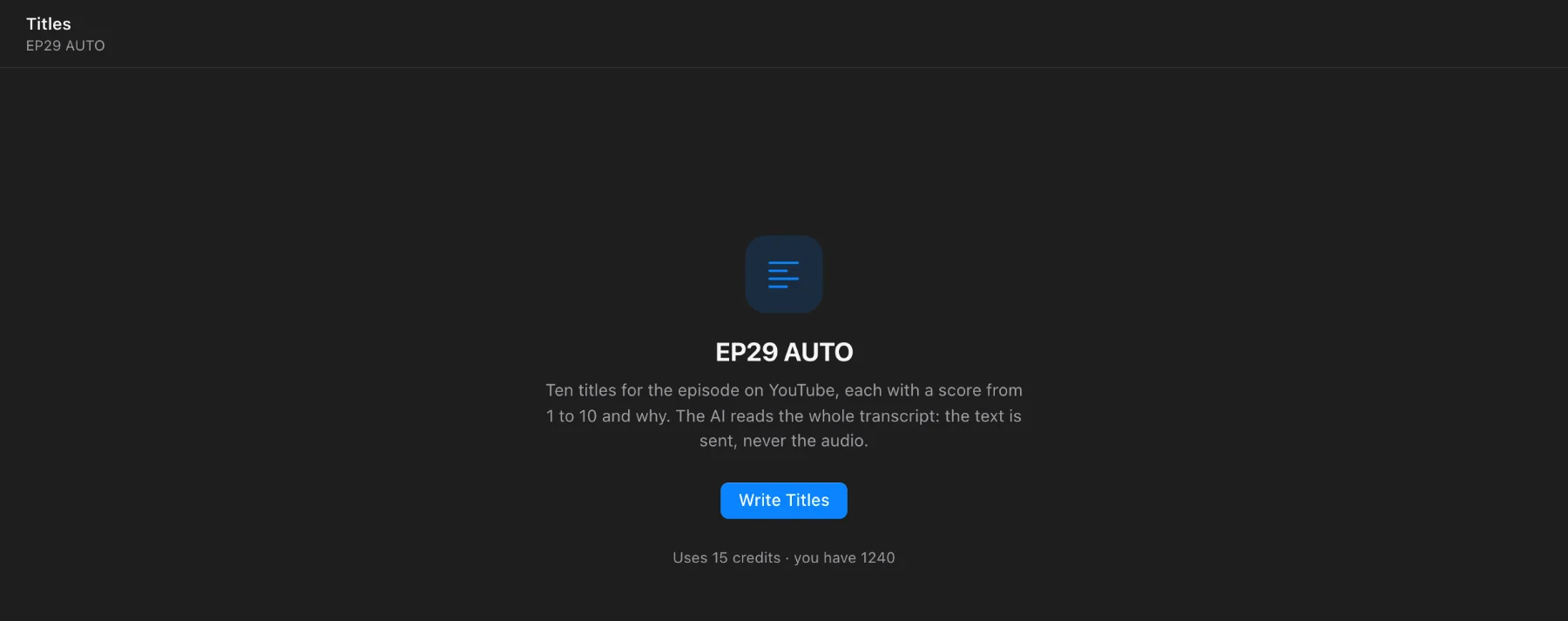
Step 1 · Write Titles
Subtitle the episode first (Tutorial 3), or use the subtitles a timeline already has. Then open Titles (⌘7) and press Write Titles.
Step 2 · Pick one and copy it
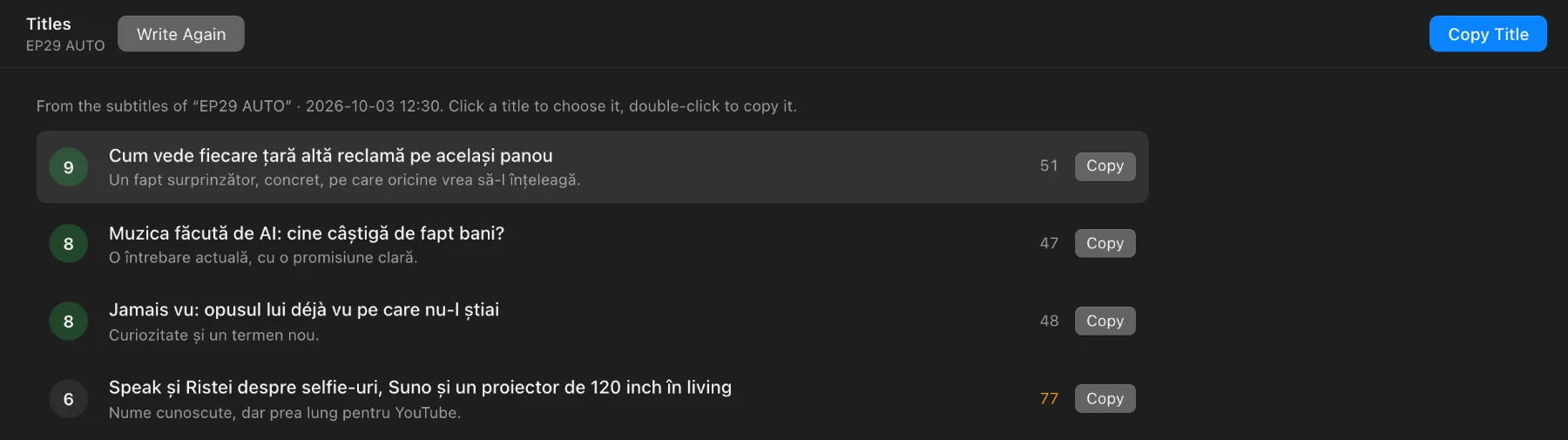
- The score says how likely a viewer is to click and stay; the line under the title says why.
- The number on the right is the title’s length: YouTube shows about 70 characters, so a number in orange is too long for the whole title to show.
- Click a title to choose it, then Copy Title (or double-click, or Return) and paste it into YouTube.
- Not happy? Write Again gives ten new ones.
The titles are AI proposals: read them like an editor before you publish.
Questions
What does it cost?
0.2 credit a minute of the episode, at least 5: about 20 credits for a 100-minute episode. The page shows it before it starts.
Is my audio sent?
No. Only the text of the subtitles is sent, never audio or video.