
Step 1 · Transcribe and Review
Open Subtitles. It works on your newest copy, “EP29 AUTO”. Choose the episode’s Language (33 languages, or Auto-detect), then press Transcribe and Review. The page says what it costs before anything starts.
- In the cloud (with credits): a 90-minute episode in about 3 minutes, every voice named from its microphone.
- On this Mac (free): with Whisper large-v3; nothing is uploaded. Choose it in Settings › AI.
The AI review then reads the whole episode and fixes misheard words, diacritics and digits from context. Untick Review the text with AI if you only want the transcription.
Step 2 · Read it, fix what you hear wrong
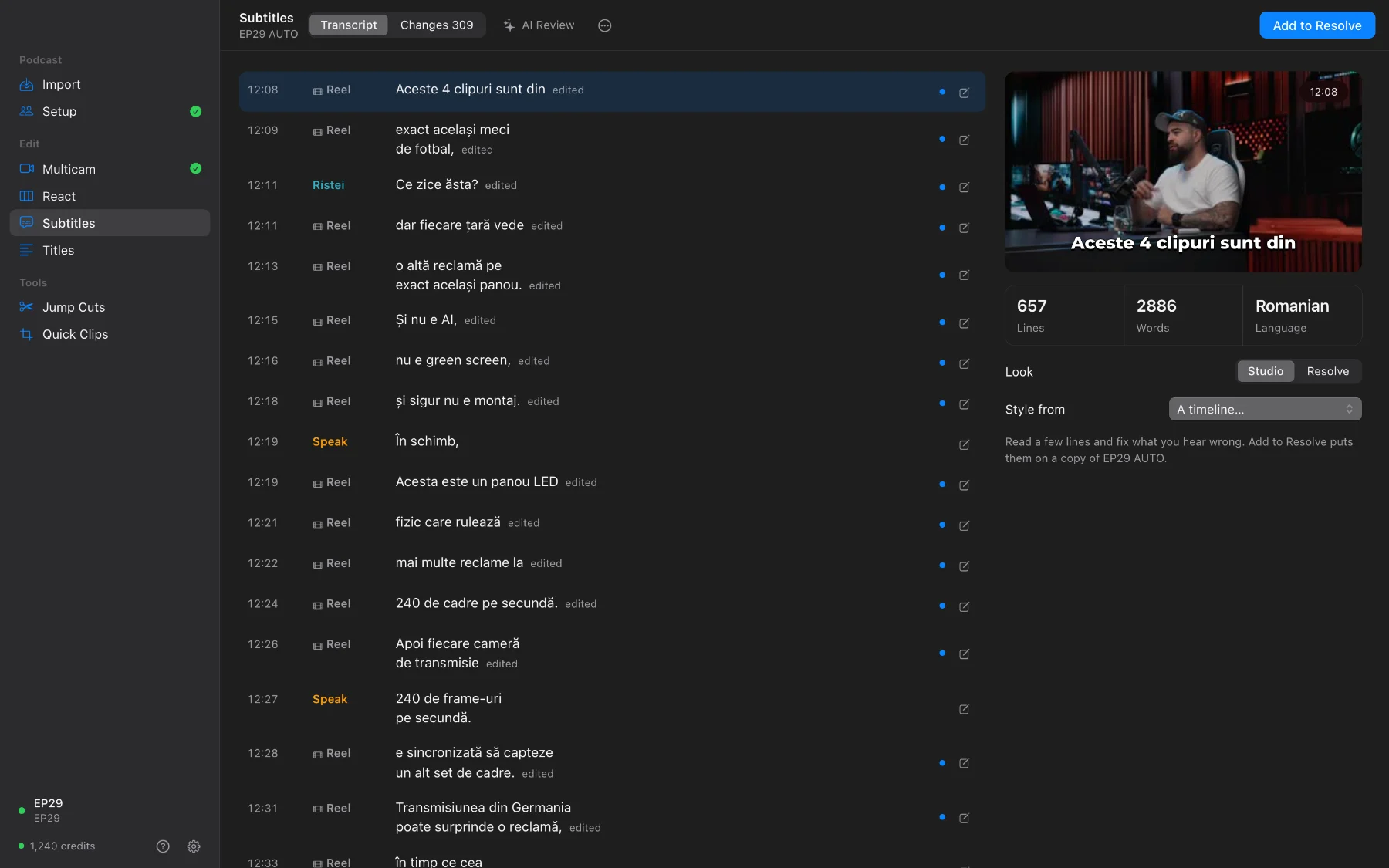
- Click any line to edit its text, then Save.
- Changes lists everything the AI changed; undo any of them, one at a time.
- A reel playing on the screen in another language is subtitled in the episode’s language, marked as translated.
Step 3 · Choose the look and add to Resolve
Under Look choose Studio (our studio’s look, Montserrat ExtraBold), Resolve default, or Style from any timeline you already styled. Press Add to Resolve: SOLD CUT makes a copy of the timeline with the subtitles on its first subtitle track.
Cues are kept short, about a second, two lines of up to 26 characters, timed to the word, and a cue that starts a few frames from a camera cut starts exactly on the cut. Need the file? Export SRT saves it anywhere.
Questions
What does it cost?
On your Mac it is free (Whisper large-v3, a 2.9 GB model downloaded once). In the cloud, 1 credit a minute, and the AI review 1 credit a minute: about 198 credits for a 90-minute episode with everything. The page shows the cost before it starts.
The timeline already has subtitles. Do I pay again?
No. Choose that timeline: the page says This timeline already has subtitles. Press Use These Subtitles; nothing is transcribed or paid, and Titles can work from them.
I edited the sound in Resolve after transcribing.
Subtitles tells you the transcript is older than your edit and offers Transcribe Again, so the subtitles follow your cut. Switching cameras does not count.