
1 · Where the setting is
- In DaVinci Resolve, open DaVinci Resolve › Preferences… (⌘,).
- Choose System, then General.
- Set External scripting using to Local and press Save.
- Quit Resolve completely (⌘Q) and open it again. The setting only works after a restart.
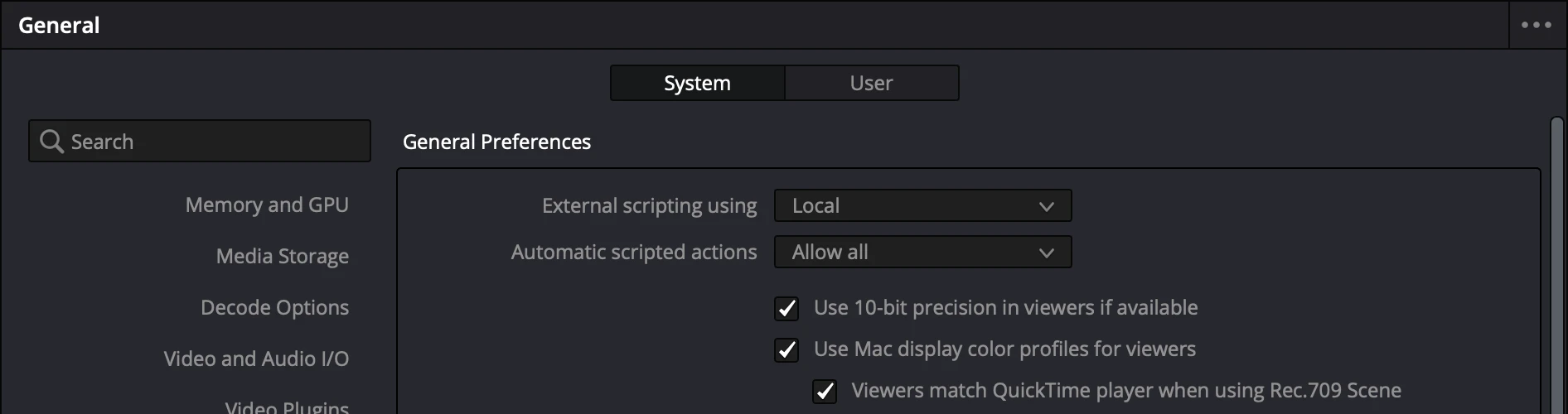
2 · Why the free DaVinci Resolve can’t connect
Since version 19.1 only DaVinci Resolve Studio lets other apps edit timelines. The free edition may show the same setting, but it still refuses the connection. From the outside the two cases look the same: a Resolve that refuses the connection does not say which edition it is.
3 · Still not connecting? Check, in this order
- Check that you run DaVinci Resolve Studio, not the free edition.
- Is External scripting using set to Local, and did you restart Resolve after changing it?
- Is Resolve open, with your episode project open?
- Is Resolve open when you press Connect? If you changed the setting, restart Resolve first.
4 · How SOLD CUT checks it for you
When you open SOLD CUT with Resolve running, Before your first episode checks the setting and says exactly what to change. Every row turns green by itself as soon as Resolve is right.
If Resolve is open but the setting is off, or it is the free edition, SOLD CUT says:
“Resolve is open but refuses the connection: External scripting is off, or this is the free Resolve.”
On the Connect screen the same case reads Resolve is open but does not accept connections, with the steps above. The whole setup, frame rate included, is in Tutorial 1: Before your first episode.
SOLD CUT
SOLD CUT edits multicam podcasts in DaVinci Resolve Studio on the Mac. Try it free for 3 days: every feature, 100 AI credits.
Questions
Does SOLD CUT work with the free DaVinci Resolve?
No. Since version 19.1 only DaVinci Resolve Studio lets other apps edit timelines, and that is how SOLD CUT builds your edit.
Do I have to do this every time?
No. Once, then restart Resolve. If Resolve ever stops connecting, SOLD CUT tells you what to change.